A new digital banking experience is here
Experiencing an issue with digital banking? Check the status of known issues and resolutions
The digital banking upgrade is here
Fewer clicks. Less fumbling around. More time for doing non-banking stuff. Better digital banking is here, with powerful upgrades including:
- A clean design that quickly feels familiar
- Next-level security with multi-factor authentication and custom alerts
- Handy new built-ins, like credit card management and financial tools
Your questions, answered
Explore our newly enhanced Support Center to quickly find answers to your most common questions.
Getting started checklist
Breeze through these quick tips now for a smooth upgrade.
Personal checklist
Check the Apple App Store or Google Play to make sure you have the current Ent mobile app and upgrade if needed:
- iOS users: version 16+
- Android users: version 13+
If your device doesn’t meet these requirements, you can still use digital banking by visiting ent.com on your mobile browser and logging in there.
Set up your previous alerts using the new alerts options by finding Alerts in the menu. We’ll also automatically notify you of any important actions such as contact information or password changes.
Make the most of your money. After the upgrade, turn on the built-in Financial Wellness Tools.
If your vendor’s platform doesn’t work with the upgrade:
- Go to the vendor site
- Set up an automatic payment with your account number and our routing number (307070005)
Reference this guide to update your sub-user(s) entitlements or permissions.
Business checklist
Check the Apple App Store or Google Play to make sure you’re using the current Ent mobile app and upgrade if needed:
- iOS users: version 16+
- Android users: version 13+
Reference this guide to update your sub-user(s) entitlements or permissions.
Set up your previous alerts using the new alerts options. We’ll also automatically notify you of any important actions such as contact information or password changes.
Manage your cards anytime, anywhere
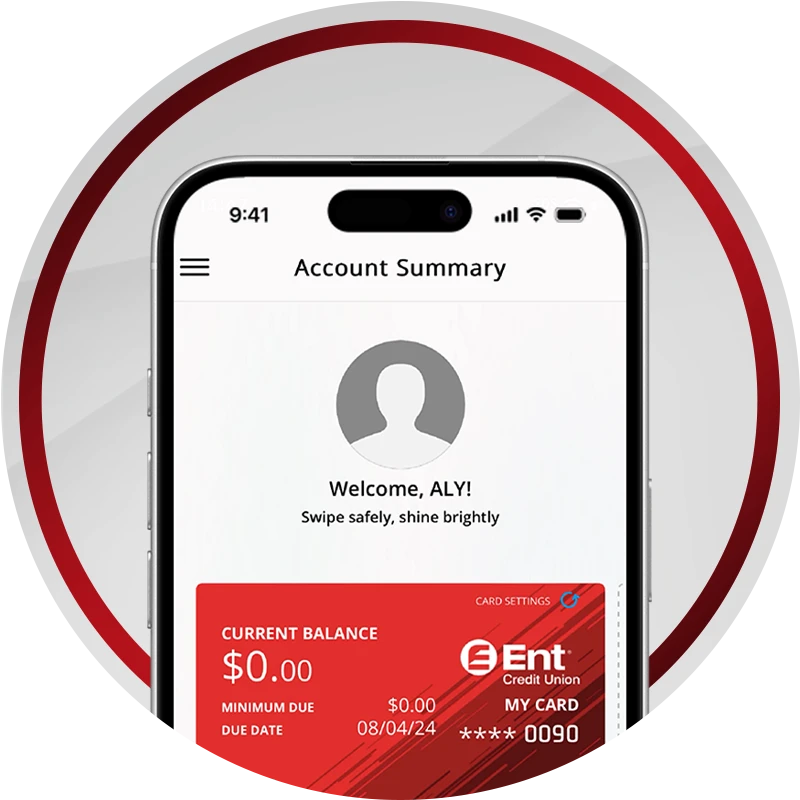
With digital banking, you can easily take control of your credit and debit cards wherever you are with upgraded features:
- Advanced card controls, like locking/unlocking your card or reporting it lost/stolen
- Track transactions from groceries to bills
- Set spending limits per merchant, transaction and more
- Make credit card payments
- View credit card rewards points
To get started, log in to digital banking and select your card account, then choose Card Services to access these features and more.
How to videos
How to log in and log out of digital banking
How to find your way around in digital banking
How to customize your dashboard in digital banking
Frequently asked
You will need to update the Ent mobile app in the App Store or Google Play. Then be sure to turn on automatic updates to keep it current.
You will access digital banking either from the Ent website or the mobile app. From there, you will either need to set up your account if it is your first time logging in or you can use your current username and password to sign in.
At Ent, we continually strive to improve our service and your member experience. This upgraded experience has many new features and capabilities.
Yes. The minimum requirements are as follows:
- Apple devices: iOS 16 or above
- Android devices: Android 13 or above
If your device doesn’t meet these requirements, you can still use digital banking by visiting ent.com on your mobile browser and logging in there.
Compatible browsers include Microsoft Edge, Google Chrome, Mozilla Firefox or Apple Safari. Browsers must be updated to one of the two most-recent updates.
No, all members will be upgraded to the new digital banking experience.
Yes, you will use your existing Ent username and login to acess the upgraded experience.
No, when the upgraded experience launches, you will need to set up the alerts that you’d like to receive. As part of the upgrade, we’ll be adding new alert options.
You can view details on transfers by selecting "Make a Transfer" in the menu, then navigating to "Transfer History." If you need more information about a transfer, please contact Ent at (800) 525-9623.
You can change your username or create a new username by visiting your profile in digital banking, then choosing "Security." To protect your login information, you will first be asked to verify your identity.
Yes, you can order a new debit or credit card in digital banking by selecting the account and clicking on "Card Services," located under your balance information. From there, select "Request a New Card," confirm your address is correct, and submit.
Credit card payments are easily handled in digital banking by either clicking Make a Transfer or clicking your credit card account and choosing Make a Payment.
You may also make payments by visiting a service center, calling us at 800-525-9623, or mailing a check to: Ent Credit Union, PO Box 660493, Dallas, TX 75266-0493.
To change your PIN, log in to digital banking and select the account from your dashboard. Then click Card Services, and then click Set PIN. You will need to verify your identity before setting or changing your PIN.
You can also visit one of our convenient service center locations or change it at any Ent ATM. (Please note that to change your PIN at an ATM, it must be an Ent ATM.)
Your PIN acts as a signature when you use your debit card for point-of-sale transactions and to withdraw cash from an ATM. For security reasons, you should keep your PIN to yourself and choose a number that can’t be easily guessed.
If you do not know your username and/or password, click Forgot Your Username or Password on the digital banking login screen and follow the verification instructions.
If you have been locked out of digital banking you can reset your password by clicking Forgot Your Username or Password and following the instructions. Or, you can contact a Member Service Representative at 800-525-9623 during business hours so we can unlock your account for you.
For your security, we will lock out anyone who is unsuccessful in multiple attempts to log into your account. We want to verify that it is you who is trying to access the account and will ask you for personal information to reset the account login information.
You can reorder checks in two ways:
Log into digital banking and select the checking account you want checks for, then click Order Checks in the upper right corner near your balance information. In the mobile app you may need to tap More (next to Card Services) after selecting the checking account, in order to see the Order Checks option.
Clicking Order Checks will open a new window to our provider’s site, Harland Clarke. Ent offers two check designs for members: the basic Ent CU design and the Ent CU Custom (Broncos) design.